2009年3月6日星期五

Extract audio from Flash Video to MP3

Brief introduction about MP3

MP3 (MPEG Layer-3) is a digital audio compression algorithm that achieves a compression factor of about twelve while preserving the original sound quality. It does this by optimizing the compression according to the range of sound that people can actually hear. MP3 is currently the most powerful algorithm in a series of audio encoding standards developed under the sponsorship of the MPEG organization and formalized by the ISO.


The widespread use of MP3


MP3 files (file extension ".mp3") can be downloaded from many World-Wide-Web sites and can be played back using software available for most operation systems, such as: Winamp for PC, MacAmp for Machintosh, MPEG-123 for Unix, etc.. MP3 files are usually downloaded completely before playing but streaming MP3 also is possible. A program called "ripper" can be used to copy a selection from a music CD onto your hard disk and another program called "encode" can convert it to MP3 file.


How to extract audio from Flash Video to MP3 audio?

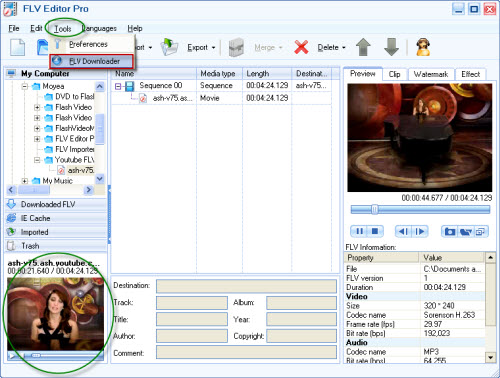
Moyea FLV Editor Pro can satisfy your wanting with powerful functions. This application integrates free FLV Downloader together; you can get YouTube videos by launching FLV Downloader. If you just want to play FLV in your computer, try free FLV player.


Just follow these simple steps; you can get MP3 without any effort.


Step1. Dwonload and Launch Moyea FLV Editor Pro
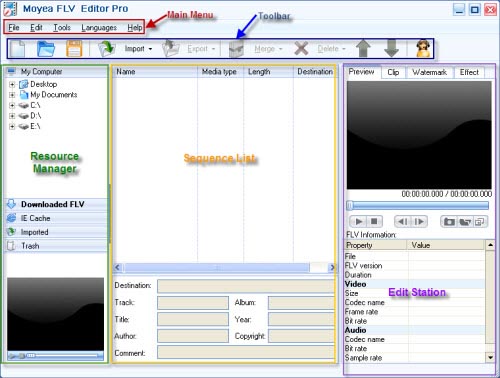

FLV to DVD converter


Step2. Import FLV


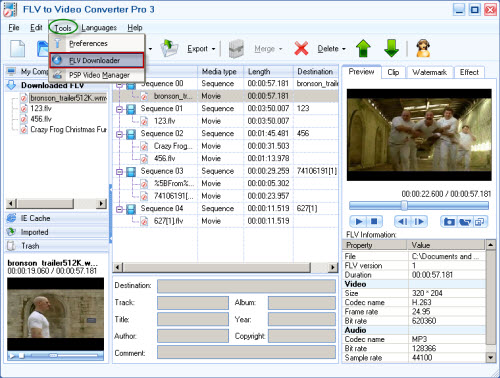
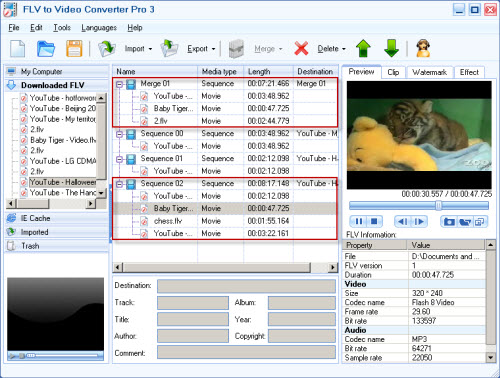
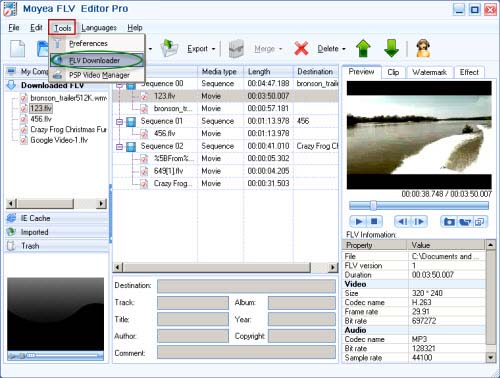
Drag and drop FLV from Resource Manager to the Sequence List or hit "Import" to load FLV files. If free YouTube FLV Downloader is launched from "Tools" on Main Menu, the downloaded FLV from YouTube will appear in "Downloaded FLV" tab. You can drag it to the Sequence List directly.


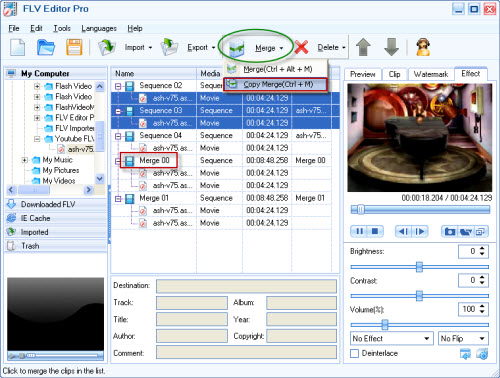
Merge


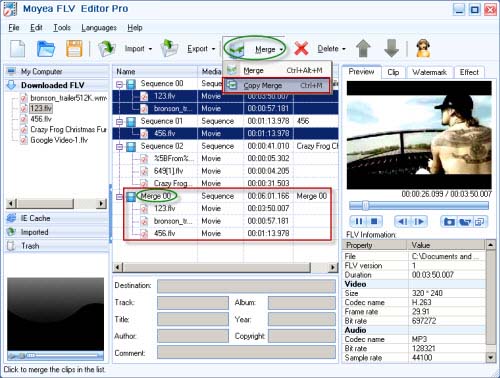
By this function, you can merge your favorite videos or audios altogether to enjoy at a time.


Choose "Merge" to combine the files selected into one sequence, the files you selected only exist in this sequence.


Choose "Copy Merge" to combine the files selected into a new sequence, the files you selected will exist both in the new sequence and in the previous sequence.


Step3. Export


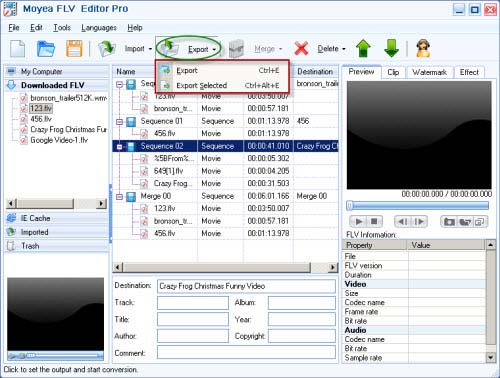
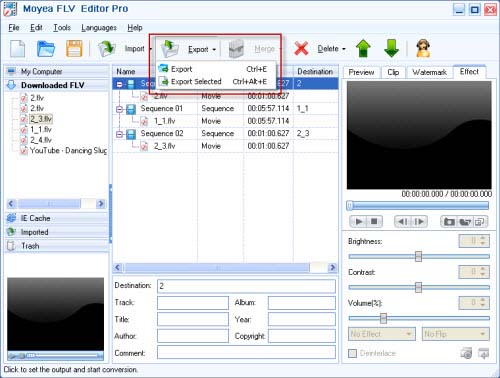
Click "Export" for output. Select "Export" for all the sequences and select "Export Selected" for the selected sequence output.


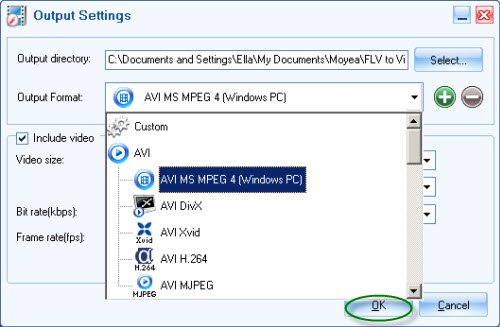
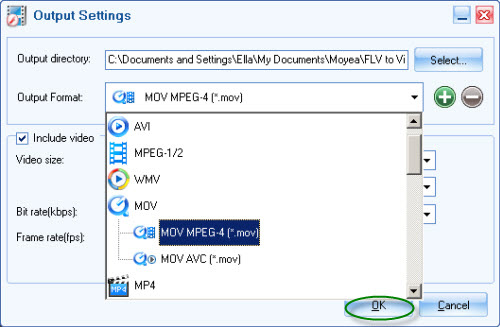
After choosing the output method, the output setting window will pop up. Choose "Audio MP3" as the output format and specify the output folder in the red pane to save the converted files.


Here you can do more audio settings on the FLV files for your MP3, such as sample rate, sound channel, etc.
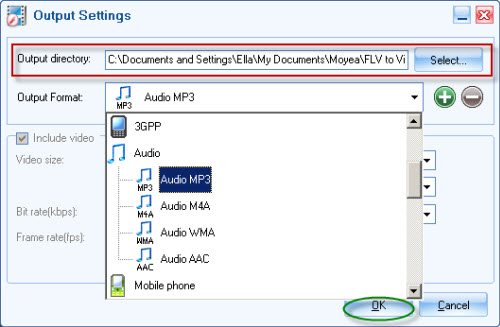


Click "OK" to start conversion
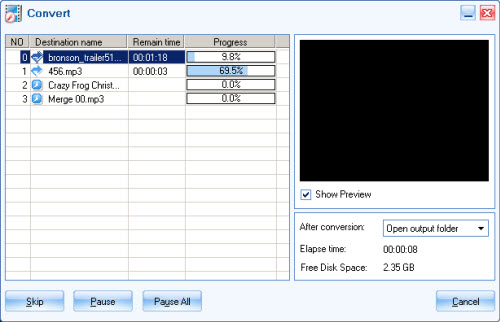

After conversion is completed, everything is ready for you to enjoy the export MP3 files in the output directory at once!

How to convert Flash Video to AVI for enjoying in your windows movie maker

This guide aims to share with you the best application to convert Flash video to AVI for enjoying on your DV, inserting into PPT, editing in windows movie maker, playing on window media player, and so on.


In order to finish this guide, please install Moyea FLV to Video Converter Pro 3


FLV to avi converter


Input FLV


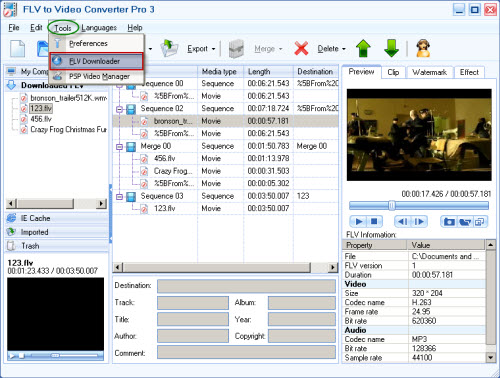
Drag and drop FLV from Resource Manager to the Sequence List or hit "Import" to load FLV files. If FLV Downloader is launched from "Tools" on Main Menu, the downloaded FLV from YouTube will appear in "Downloaded FLV" tab with free flv downloader. You can drag it to the Sequence List directly.


Edit


Powerful editing function is designed to meet the individual needs, such as merge, trim and crop video, add watermark, insert special effects, output FLV and capture thumbnail.


Export


Click "Export" in "Toolbar" section to bring out this interface, here you can do more settings to the output file, such as video size, frame rate, bit rate, etc.


Convert


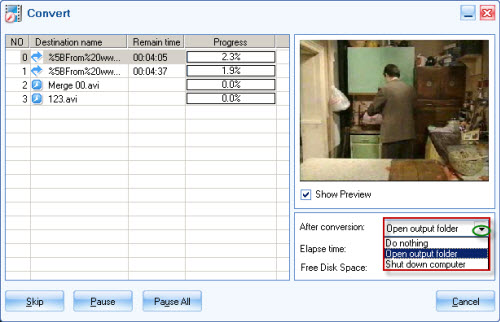
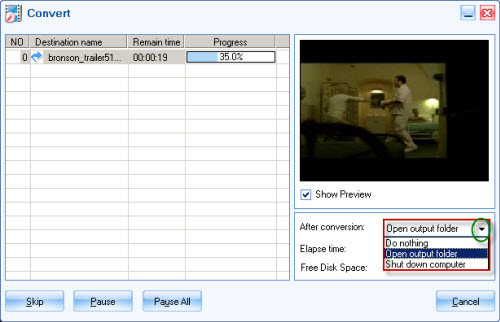
Click "OK" to convert,you can open the output folder or shut down computer automatically after conversion by the settings in the red pane:


After conversion, mission accomplished! Then you can get AVI file.

Flash Video to MOV (QuickTime Movie) converter

What is MOV?


Quicktime (*.mov) is a multimedia development, storage, and playback technology from Apple. Quicktime files combine sound, text, animation, and video in a single file. Using a Quicktime player that either comes with a Web browser or downloaded from Apple or the browser company, you can view and control brief multimedia sequences. As a multimedia standard, QuickTime is not purely linear. It could contain interactivity and causes problems when converting to other video formats. A lot of digital cameras record video in QuickTime support. More information can be found on Apple's QuickTime page.


How to convert FLV to MOV?


So many funny videos are all in FLV file format on video sharing sites, such as YouTube, MySpace, Google Video; Moyea FLV to Video Converter Pro 3 can Convert FLV to MOV to satisfy your wanting with powerful functions.


Get a perfect enjoyment at once by following the simple steps below:


Step1. Launch Moyea FLV Editor Pro


FLV to DVD converter


Step2. Add FLV


Drag and drop FLV from Resource Manager to the Sequence List or hit "Import" to load FLV files. If FLV Downloader is launched from "Tools" on Main Menu, the downloaded FLV from YouTube will appear in "Downloaded FLV" tab with free YouTube FLV Downloader. You can drag it to the Sequence List directly.


Step3. Edit station


A). Clip


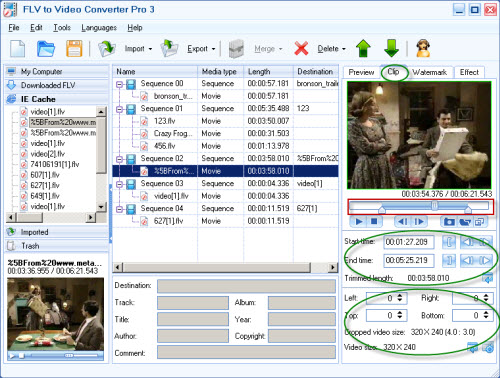
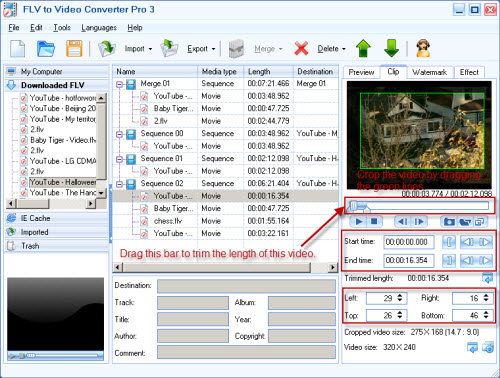
Click "Clip" in Edit Station, you can reduce the video duration as well as crop the video size by typing the value in edit box or drag the blue slide bar directly.


B). Watermark


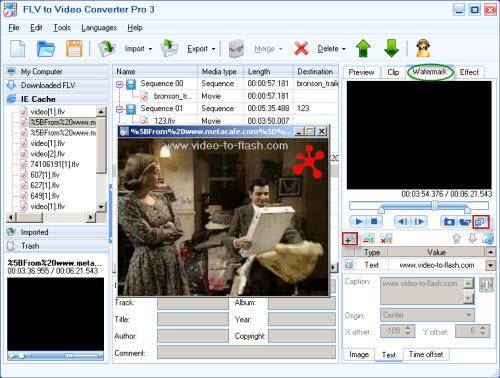
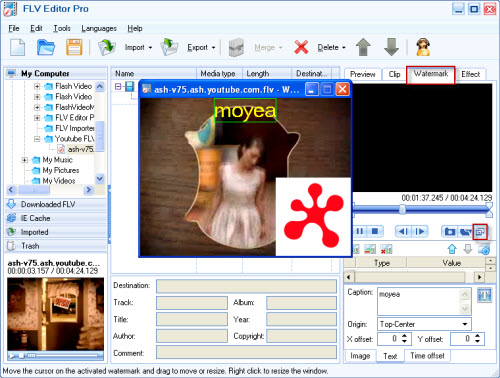
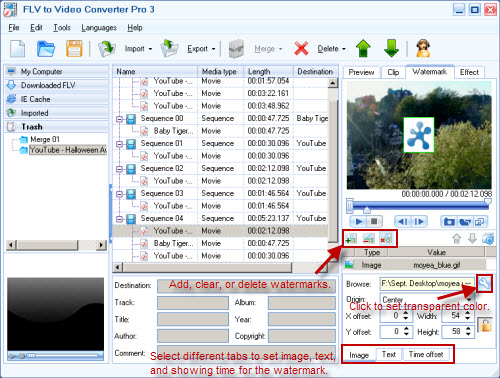
Add any number images or texts at any time to the video by clicking under the "Watermark" tab


Adjust the origin and size of the watermark by dragging the image or text on the video freely. Typing the value in edit box also is available.

Float the window by clicking to preview the watermark comfortably:

C). Effect


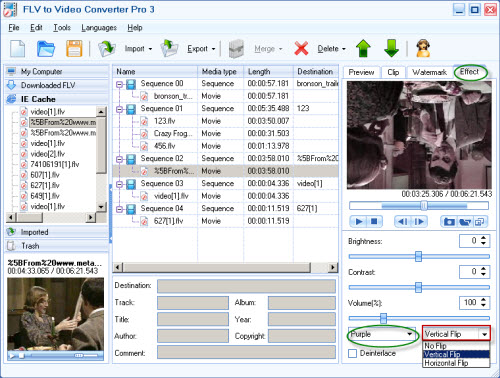
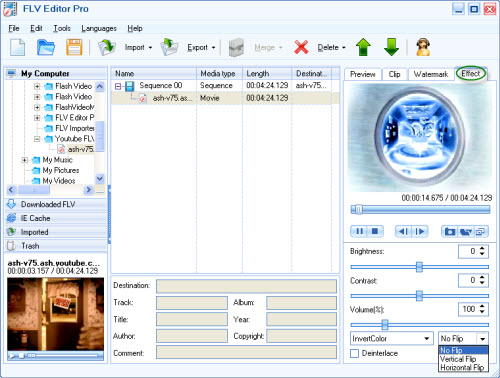
Click "Effect" to configure the brightness, contrast and the volume, especially you can choose the flip method and the special effects like invert color, purple, engrave, etc.


Step4. Export the sequence to convert.


Click "Export" for output. Select "Export" for all the sequences and select "Export Selected" for the selected sequence output.

Export the sequence and convert


After choosing the output method, the output setting window will pop up:

Click "OK" to convert, after the conversion is completed, you can enjoy the output MOV files immediately!

Convert Flash video to WMV (Windows Media Video)

What is WMV?
WMV, as a video file format, stands for Windows Media Video. It was developed and controlled by Microsoft. WMV is a generic name of Microsoft's video encoding solutions and doesn't necessarily define the technology that it uses. Since WMV7, Microsoft has used its own flavor of MPEG-4 video encoding technology. DivX video format is originally based on the WMV codec.


The best application of converting FLV to WMV


Moyea FLV Editor Pro which integrates FLV Downloader together can convert FLV files downloaded from video sharing sites to WMV file format playable on the PC and other portable devices. What's more, you can combine several videos into one under the "Merge" tab in the "Toolbar" section.


Follow the simple steps below to get Windows Media Video immediately:


(1) Install and launch the program


FLV to wmv converter


(2) Import FLV into the sequence list.


Drag and drop FLV from Resource Manager to the Sequence List or hit "Import" to load FLV files. If FLV Downloader is launched from "Tools" on Main Menu, the downloaded FLV from YouTube will appear in "Downloaded FLV" tab with free YouTube FLV Downloader. You can drag it to the Sequence List directly.


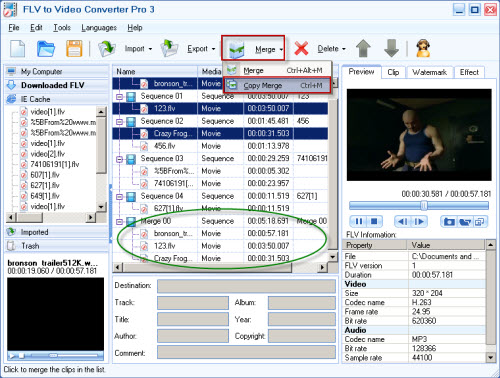
Merge

Choose "Merge" to combine the files selected into one sequence, the files you selected only exist in this sequence.

Choose "Copy Merge" to combine the files selected into a new sequence, the files you selected will exist both in the new sequence and in the previous sequence.


(3) Edit station

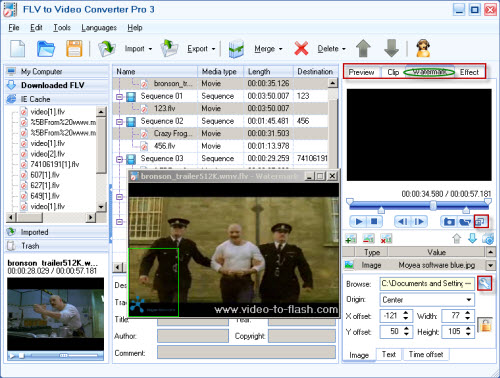
This station is designed to meet the individual needs, such as trim and crop video, add watermark, insert special effects, output FLV and capture thumbnail.


What's more, you can preview the editing effect comfortably by clicking to float the window:


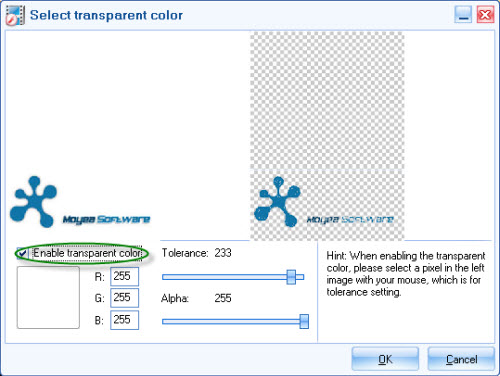
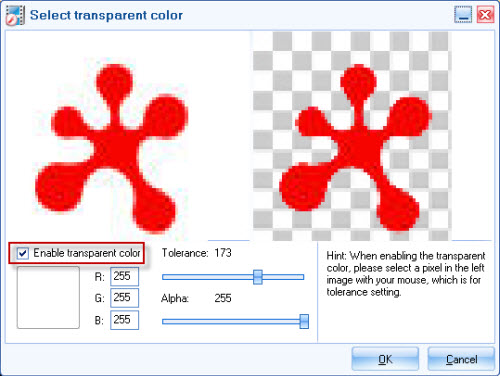
Click to adjust the tolerance of the image watermark (logo) by checking "Enable transparent color":


(4) Export the sequence to convert


Click "Export" for output. Select "Export" for all the sequences and select "Export Selected" for the selected sequence output.

wmv output

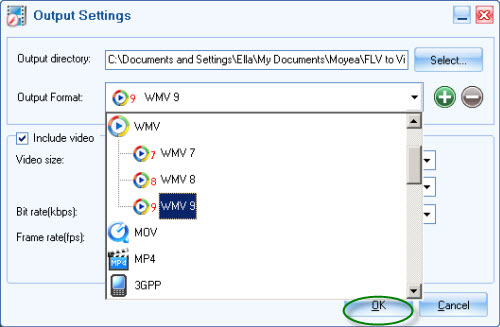
Then the output setting window will pop up,here you can do more settings on the output files, such as video size, bit rate, etc.


Click "OK" to convert,you can open the output folder or shut down computer automatically after conversion by the settings in the red pane:

How to convert Flash Video to DVD

There are so many funny videos which are all in FLV file format on video sharing sites, such as YouTube, MySpace, Google Video; how to Convert FLV to DVD and enjoy with DVD player? Moyea FLV Editor Pro can satisfy your wanting with powerful functions.

Why choose Moyea FLV Editor Pro to convert FLV to DVD?
1. FLV Editor Pro not only converts FLV files on your PC and YouTube videos to DVD, but also integrates FLV Downloader together. You can get YouTube videos by launching FLV Downloader.
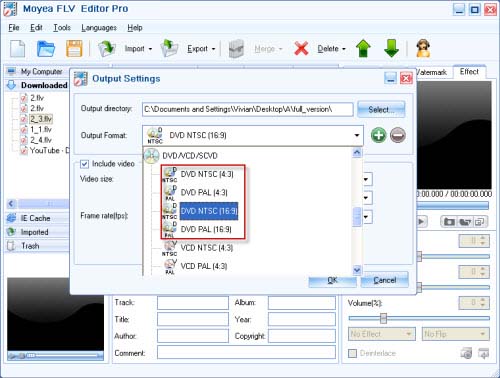
2. FLV Editor Pro provides multiple DVD output options: DVD NTSC (4:3), DVD PAL (4:3), DVD NTSC (16:9) and DVD PAL (16:9). You can combine several videos into one under the "Merge" tab in the "Toolbar" section.
3. FLV Editor Pro offers you powerful editing function which is designed to meet the individual needs, such as merge, trim and crop video, add watermark, insert special effects, output FLV and capture thumbnail.

Get a perfect enjoyment immediately by following the simple steps below:


Install and launch Moyea FLV Editor Pro 3, the main interface will be like this:


FLV to DVD converter


Import FLV into the sequence list.


Drag and drop FLV from Resource Manager to the Sequence List or hit "Import" to load FLV files. If FLV Downloader is launched from "Tools" on Main Menu, the downloaded FLV from YouTube will appear in "Downloaded FLV" tab with free YouTube FLV Downloader. You can drag it to the Sequence List directly.


Merge


Choose "Merge" to combine the files selected into one sequence, the files you selected only exist in this sequence.


Choose "Copy Merge" to combine the files selected into a new sequence, the files you selected will exist both in the new sequence and in the previous sequence.


Edit


A). Clip


Click "Clip" in Edit Station, you can reduce the video duration as well as crop the video size by typing the value in edit box or drag the blue slide bar directly.


B). Watermark


Add any number images or texts at any time to the video by clicking "+" under the "Watermark" tab


Adjust the origin and size of the watermark by dragging the image or text on the video freely. Typing the value in edit box also is available.


Click to adjust the tolerance of the image watermark (logo) by checking "Enable transparent color":


watermark


Float the window by clicking adjust to preview the watermark comfortably:


C). Effect


Click "Effect" to configure the brightness, contrast and the volume, especially you can choose the flip method and the special effects like invert color, emboss, engrave, etc.


Export the sequence to convert.


Click "Export" for output. Select "Export" for all the sequences and select "Export Selected" for the selected sequence output.


Export the sequence and convert


After choosing the output method, the output setting window will pop up. Choose "DVD NTSC (16:9)" as the output format and specify the output folder to save the converted files.


DVD NTSC

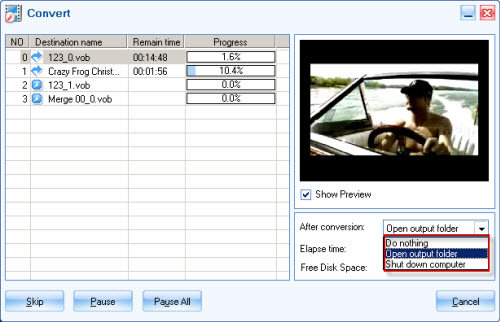
Click "OK" to convert, you can open the output folder or shut down computer automatically after conversion by the settings in the red pane:


After conversion is completed, you can play the output videos in media player, or use free burner to burn the output videos in DVD Disc, then you can enjoy them on your home DVD player at once!

How to convert Flash Video to MP4 for enjoying on your iPhone

What's Apple iPhone?


Apple iPhone is the revolutionary new mobile phone that works both as a cellular phone and iPod player, allowing you to store music as well as video from your iTunes library on it for playback on the go.


What is Flash video?


Flash video, or FLV, is the proprietary file format for delivering video files on the Internet, and it is widely applied today.


Moyea FLV to Video Converter Pro3 is the best choice for you to convert FLV to iPhone; you can get YouTube videos by launching FLV Downloader which has been integrated in Pro3.


Launch Moyea FLV to Video Converter Pro 3, the main interface will be like this:


FLV to DVD converter


Import Flash video flv files to the program


Drag and drop FLV from Resource Manager to the Sequence List or hit "Import" to load FLV files. If FLV Downloader is launched from "Tools" on Main Menu, the downloaded FLV from YouTube will appear in "Downloaded FLV" tab with free flv downloader. You can drag it to the Sequence List directly.


Powerful editing function


Pro3 offers you powerful editing function which isdesigned to meet the individual needs, such as merge, trim and crop video, add watermark, insert special effects, output FLV and capture thumbnail. You can also preview the watermark comfortably by clicking the button in the red pane to float the window:


Settings


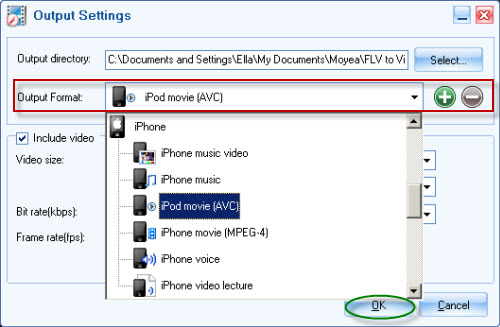
Click "Export" to bring out this interface, you can adjust the audio and video settings to fit the iPhone playback. Before all the settings, please select the right output format in the drop-down list of "Output Format". Choose whatever you like under "iPhone". And then you can do the settings like video codec, audio codec, sample rate, channels, frame size, and so on.


Convert


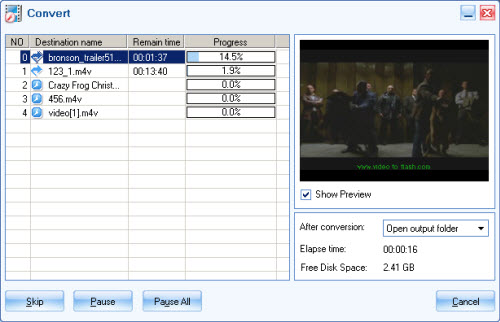
Once you have set the relevant parameters for the output iPhone video, you canclick "OK" to convert:


Moyea FLV to Video Converter is easy to use and efficient. With this program, converting your favorite FLV files to the video for playback on iPhone is within a few clicks.


Now, Moyea offers the free trial version of the FLV to video conversion program on its website, have a try, and enjoy it!

How do you combine several FLV files into one for free?

Do you like surfing online watching online videos from YouTube, Google, and Yahoo? Are you annoyed by the short videos that you have to watch many times to finish a single movie? Have you ever thought of download and combine them into a single one and enjoy them without a break?


This tutorial is to tell you the easy way to combine several FLV files to a single one for free, so that you needn't watch videos with the annoying breaks.


I'd like to recommend FLV Editor Pro here.


Just download, install it and launch the program. With this tool, you can not only join these FLV files, but also convert them in other formats like AVI, MPEG, 3GP, WMV, FLV1, MP3, etc.


First, import the FLV files. You can import by clicking the Import button and Import Merge Files, dragging from the Resource Manager, or by clicking "File> Import> Import Merge Files". No matter in what way you import the files, make sure that they are in the same sequence. If not, you can select the FLV files in the sequence list with the help of "Ctrl" or "Shift", and click "Merge> Merge or Copy Merge".


With this program, you can not only output FLV files without recoding, but also output recoded FLV files. If you output the FLV without recoding you can only trim the video under Clip tab. The crop, watermark, and effect functions are only available to the converting and recoding files.


You can trim the FLV files one by one or click the button to apply the settings to other sequences or videos.

Export FLV without recoding


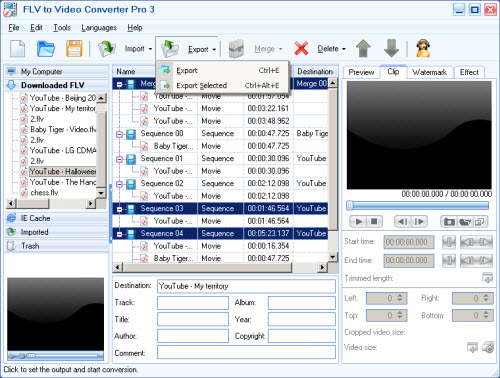
After the settings, you can export the FLV. If you have several sequences on the list and would like to export some of them, you can select the certain sequences and click "Export> Export Selected".


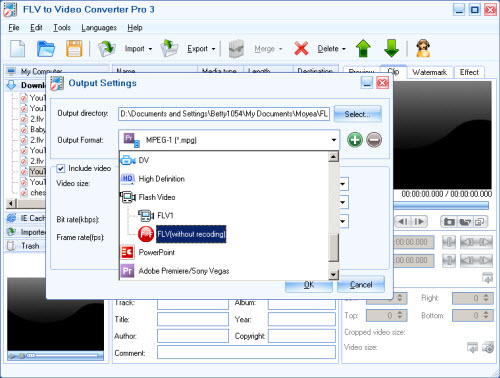
Then the following window will show up. Expand the Flash Video and select FLV (without recoding).


Note: In this section, you can choose whether to include the original audio or video.


Click "OK" to confirm. The joined FLV file will be OK in seconds. Since there is no recoding, the quality of the output file will be same as the original ones.


Output FLV1


If output the recoded FLV1, you can not only trim the video, but also crop, add watermarks and special effects. But this function is not free. There will be Moyea logo on the video and audio, if using the trial version. See the steps below:


Watermark
By selecting the watermark tab, you can add image and text as watermark at any time.


Effect
In this section, you can adjust brightness, contrast, and volume of the video and select different special effects.


Note: You can set the FLV files one by one or click the apply button to apply.


Export as FLV1


The export section is similar as stated before, just select FLV1 as the export format and click "OK" to confirm. The conversion will be finished in seconds.


Thus you get the FLV files combined into a single large one. Enjoy it without any breaks now.